Your compatible Google TV is already the player.

Install TVMenus directly, with no separate player box to buy. Upload an image or video, choose which TVs show it, and change them from anywhere.
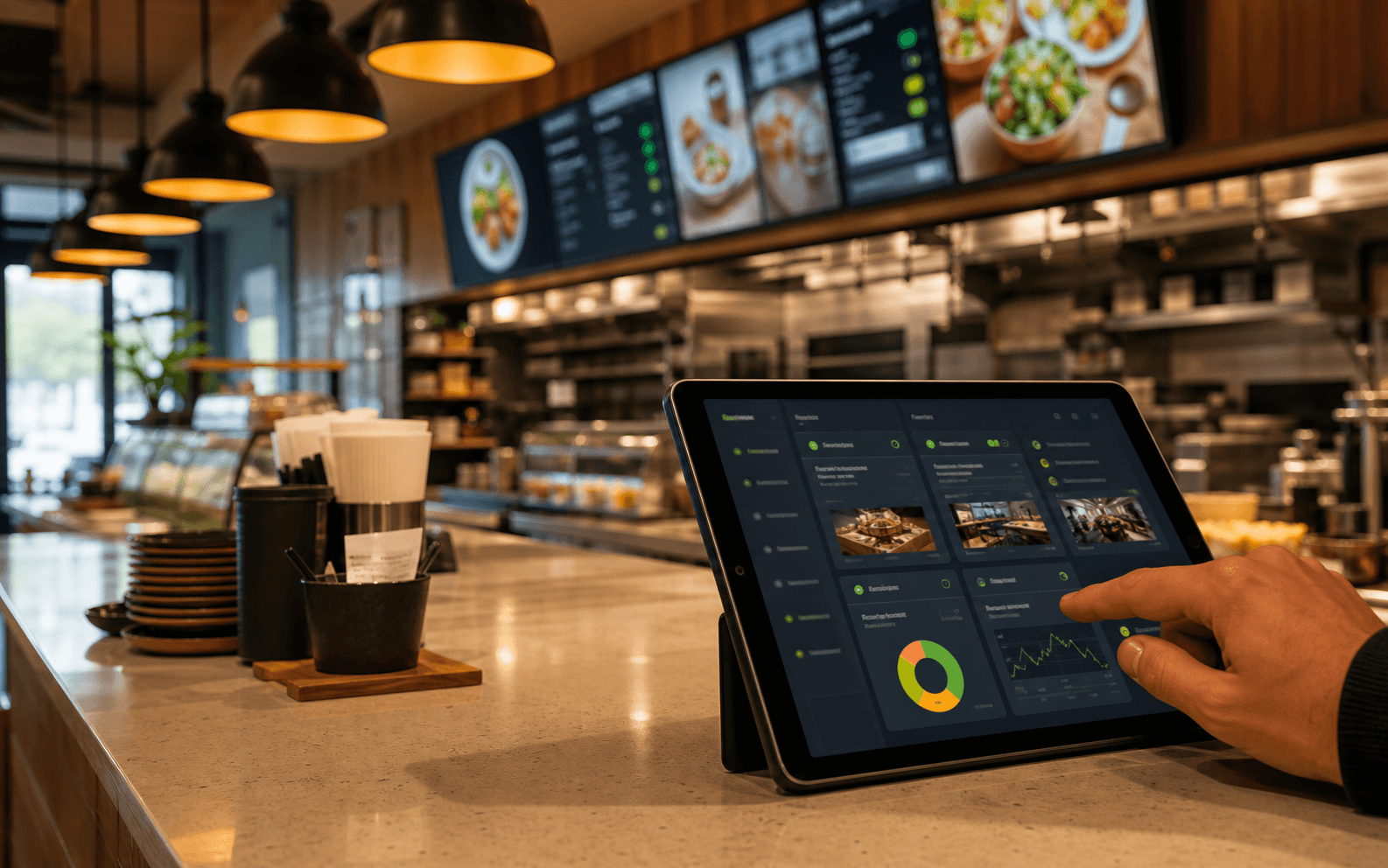
TVMenus workflow dashboard on a tablet inside a warm fast-casual restaurant

From your phone or laptop to a live screen.

  1. 1Export your menu as an image or a video.
  2. 2Upload it and pick which screens show it.
  3. 3Install the app directly on a compatible Google TV and pair it once with an 8-character code.
  4. 4Change the file whenever you like. The screens follow.

Why teams choose TVMenus

No separate player purchase on a compatible Google TV, quick pairing, and pricing that is easy to understand.

Built-in

No separate player box

Install TVMenus directly when compatible Google TV is built in. That is one less device to buy, mount, power, and manage.

Check TV compatibility
Self-serve

First screen without an installer

Pair, publish, and verify your first TV yourself. No specialist installer required.

Start a 14-day pilot
Pricing

Predictable per-screen pricing

Pay for the number of TVs you run. One screen is free, and paid screens include every feature.

See pricing

Everything points at reliable TV playback.

One job, done properly: make the file you uploaded appear on the screens you chose, and keep it there.

Upload

Upload an image or a video

Use the artwork you already have. A JPG, PNG, or MP4 from your designer, your printer, or Canva goes straight onto the screen.

Anywhere

Change it from anywhere

New price, new special, holiday hours. Upload the new file from a laptop or a phone and the screens swap over in seconds.

Offline

Content keeps playing if Wi-Fi drops

Each TV keeps a local copy of its content and reconnects automatically when the internet comes back.

Per-screen

Every screen can be different

A counter board, a drink board, and a promo screen can each show their own file, all managed from the same dashboard.

No box

Your Google TV is the player

Already have a compatible Google TV? Install TVMenus directly with no additional hardware. Google TV is built into select TCL, Hisense, and Sony models; an HDMI-only TV needs a compatible streamer.

Simple

Nothing to learn

There is no design tool to master and no layout to configure. Upload, assign, done. That is the whole product.

Built for counters, lobbies, offices, shops, schools, and venues.

  • No USB drives, no browser refresh guessing, and no manually updating every screen.
  • Keep the artwork you already paid for. Upload it instead of rebuilding it inside someone else’s editor.
  • Each screen is assigned its own file, so changing one board never disturbs the others.

Frequently asked questions.

Short answers about what to buy, pairing a TV, and getting your artwork onto a screen.

Do I need additional hardware to run TVMenus?#
Not when your television already has compatible Google TV built in. Install TVMenus directly from Google Play. No additional hardware or separate player box required. Google TV is available in select models from brands including TCL, Hisense, and Sony; confirm the exact model, not just the brand. If Google TV is not built in, connect a compatible Google TV streamer to an HDMI port. See the Google Store or Amazon. That fallback does add a streaming device. Manage either setup from any web browser.
What TVs are supported?#
TVMenus installs directly on a compatible Google TV. To check, look for Google TV in the television settings and Google Play on its home screen. Select TCL, Hisense, and Sony models ship with Google TV, but a brand name alone does not guarantee the operating system or app compatibility. If your TV does not have Google TV built in, add a compatible streamer (Google Store · Amazon) to an HDMI port.
How do I get my menu onto a screen?#
Upload it. TVMenus plays an image or a video file on your TVs, whatever your menu already looks like as artwork. Upload the file, pick which screens show it, and the TVs pick it up within seconds. No designing inside our editor, no rebuilding your menu item by item.
What files can I upload?#
Images (JPG, PNG, WebP) and video (MP4). Design them at 1920×1080 landscape for a normal TV. The same file your designer or printer already made will usually work as-is. Images can be up to 15 MB each and videos up to 200 MB, which is a few minutes of 1080p. Every image upload opens a crop window before it saves. A TV screen is 16:9, so anything that isn't already those proportions has to be trimmed somewhere. The crop window lets you drag and zoom to pick where, instead of the TV stretching it or cutting off the edge you cared about. A file that's already 1920×1080 needs one click to confirm.
Are you affiliated with Google, or with the TV brands you link to?#
No. TVMenus is an independent product from Cook Coding, LLC. We point you at Google TV hardware because that's what the player app runs on, we don't sell hardware, and we earn nothing from the links on this page. Buy wherever you like. Google TV, Android TV, and Google Play are trademarks of Google LLC. TCL, Hisense, Sony, onn., Walmart, and Amazon are trademarks of their respective owners. TVMenus is not affiliated with, endorsed by, or sponsored by any of them. We name them only to tell you what hardware the app runs on. The full wording is in Terms §16.
How do I change what's on a screen?#
Upload the new file and assign it. Every TV showing that screen swaps over within seconds, from wherever you are. Prices, specials, a holiday notice: if you can export a new image, you can change the screen.
How do I pair a TV?#
Install the TVMenus app on the TV. It shows an 8-character code. Enter that code in the dashboard at /welcome (first-time setup) or /devices (later).
How do I run more than one screen?#
Pair each TV separately. Each one gets its own code. Every screen can show its own file, so a counter board, a drink board, and a promo screen can all be different, and you change any of them from the same dashboard.
My screen went black. Now what?#
Check the power first. A TV on a switched outlet, a power strip somebody turned off at close, or a cable a delivery knocked loose looks exactly like a software fault and is the most common cause by a distance. If it has power, wake the TV and give it 30 seconds. It reconnects on its own. If it's still black, force-quit and reopen the TVMenus app on the TV. If that doesn't do it, contact us and include the device ID from your dashboard. A dropped internet connection is not the cause. The screen keeps playing through an outage. See what happens if the internet goes down.
What happens if the internet goes down?#
The screen keeps playing. Each TV holds its own copy of the file it was given, so an outage doesn't blank your menu board. Lunch service carries on and nobody in the queue can tell. What you lose is the ability to change it. A new upload can't reach a screen that's offline, so it waits. When the connection comes back the TV checks for anything it missed and catches up on its own. You don't have to touch it, and you don't have to re-upload.
How do I reset my password?#
Go to /forgot-password and enter your email. We'll send a reset link that expires after one hour. You can also sign in via magic-link from the login page, with no password needed.

Setup takes about ten minutes.